Public native video
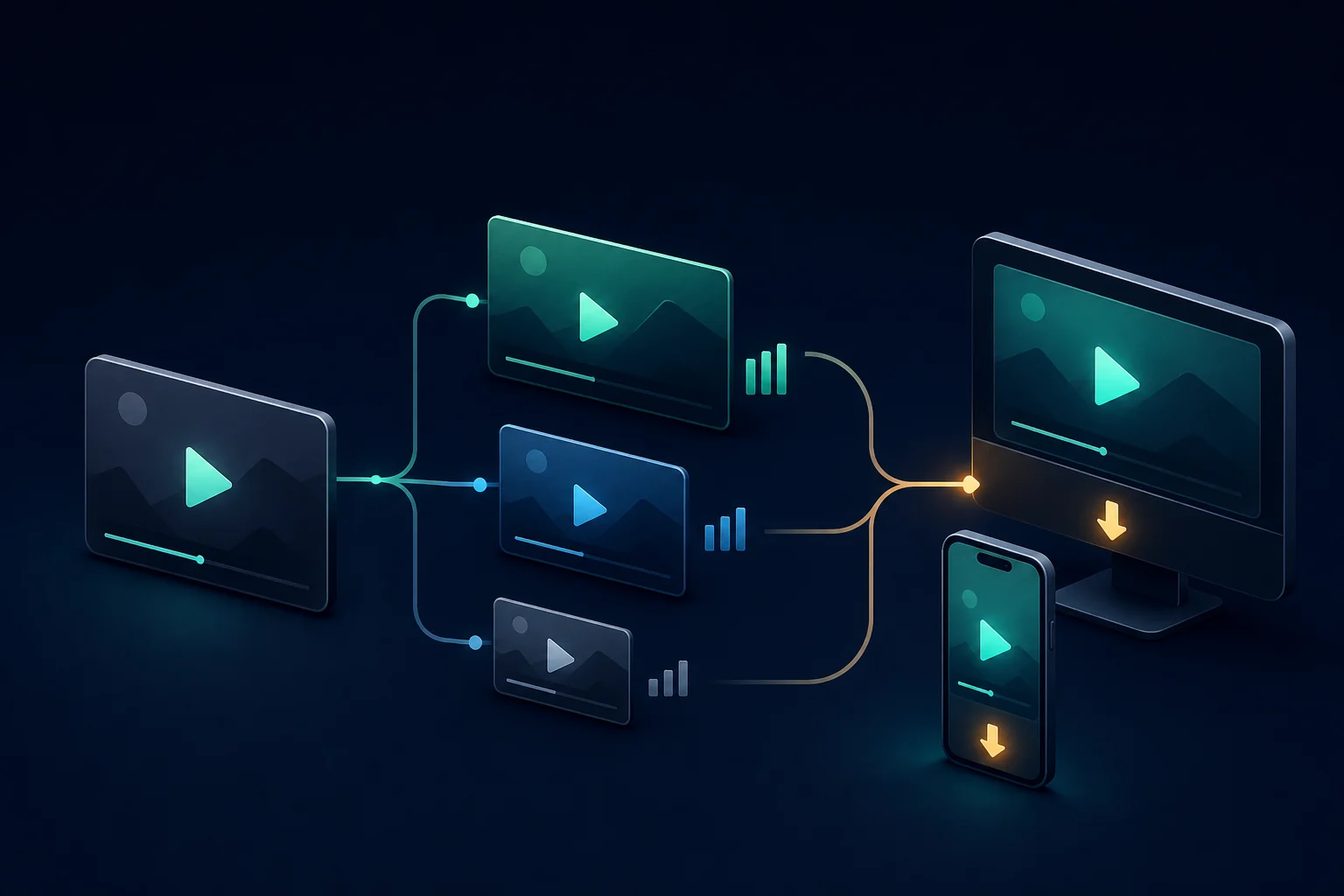
Standard video posts can return one or more MP4 files. The downloader keeps those choices separate so you can select the option that fits your screen, storage, and intended permitted use.
Paste a direct public X or Twitter status URL. Preview the post media, compare every returned MP4 quality, and save the option that fits your device or workflow.
Paste a direct public status URL to see the files made available for that post.
Lookup requests use public third-party services. Downloads may use a public CORS relay when a media host blocks a direct browser request. How privacy works.
Some public posts expose several encoded MP4 files; others expose one. Choose a higher available variant for editing or archiving your own media, and a smaller one when data or transfer speed matters. A public post can still be copyrighted, sensitive, or restricted in how it may be reused.
For device-specific steps, start with the iPhone workflow, Android instructions, or Windows and Mac guide. If expected audio is missing, use the no-sound checklist.
Use the original video post rather than a profile, search result, quote preview, or external website card.
Open the public post that owns the video and copy its full HTTPS link. A supported address contains /status/ followed by the post ID.
Paste the link above and select Find media. Preview the video and compare only the variants actually made available for that post.
Choose a larger available variant for editing or archiving your own work, or a smaller one when transfer size matters. Keep the source link with your notes.
Accurate boundaries are more useful than an “HD” or “4K” promise that does not match the source post.
Standard video posts can return one or more MP4 files. The downloader keeps those choices separate so you can select the option that fits your screen, storage, and intended permitted use.
An animation can look like a video result while containing no audio by design. Use the Twitter GIF downloader when the post contains a looping animation rather than a normal video.
The browser tool cannot authenticate into protected accounts, direct messages, deleted posts, or restricted media. Never paste credentials or private-session data into a downloader.
The tool does not upscale a low-resolution source, create a 4K file, or add an audio track. For quality decisions, use the video variant guide.
For a failed public link, use the URL checklist before installing an extension or retrying repeatedly.
Copy the direct URL of the public video post, paste it into the downloader, choose Find media, and save one of the MP4 variants returned for that post.
Only when a matching public variant is returned. The tool shows available choices and does not create detail or a resolution that the post does not provide.
Yes. It runs in a current mobile browser. Safari commonly saves the MP4 in Files, while Android browsers commonly use the Downloads folder.
No. The tool does not sign in, accept account cookies, or bypass private and restricted access.
A GIF-style animation is intentionally silent. A normal video may also have been posted without audio, or a browser preview may be muted. Check the source post before troubleshooting the file.
A device-by-device workflow for saving public X videos while choosing the right available quality and preserving creator context.
Read guideThe iPhone-specific route from a public status link to quality selection, Safari Downloads, and Files.
Read guideAn Android-specific walkthrough covering public links, quality choices, download notifications, and file locations.
Read guideA desktop workflow for copying the right link, comparing available MP4 files, and keeping a clean source archive.
Read guideHow to choose the best available MP4 for archiving, editing, mobile data, or quick sharing—without invented resolution promises.
Read guideA focused audio checklist that starts by identifying the media type before changing players or downloading again.
Read guide